
When someone types "information about picture" into a search bar they usually want one of three things: (1) the subject identified (a plant, animal, object, or person), (2) technical data embedded in the file (metadata/EXIF), or (3) a reliable workflow to get an answer fast. This article explains each path in practical, expert detail — with visual cues, measurements, habitats, legal and safety warnings, and step-by-step methods using tools such as Orvik, Google Lens, PictureThisAI, and reverse-image search services.
1. What people mean by "information about picture" (search intent)
Understanding search intent helps you choose the right method. Common intents include:
- Identify a species or object in the photo (botanical, zoological, geological, manufactured items).
- Extract technical file information — date, camera settings, GPS coordinates in EXIF.
- Find the image origin or similar visuals online (reverse image search).
- Locate a person in the image (often for reconnecting, background checks, or safety concerns).
Each goal uses different tools and raises different ethical and legal issues. Below you'll find detailed, actionable steps for each scenario.
2. Extracting technical information from an image file (EXIF and metadata)
Images often carry metadata that tells you when and how a photo was taken. The metadata can include camera make/model, aperture, shutter speed, ISO, lens focal length, and sometimes GPS coordinates.
What you can expect to find
- Camera/Device: e.g., Canon EOS 80D, iPhone 12 Pro.
- Date & Time: timestamp in UTC or local time.
- Exposure Data: aperture (f/2.8), shutter speed (1/250s), ISO (100–6400).
- Focal Length: e.g., 35 mm equivalent.
- GPS Coordinates: latitude/longitude, sometimes altitude (if location allowed).
- Software: image editor that last modified the file (Photoshop, Lightroom, Snapseed).
How to view metadata
- On desktop: Right-click the file > Properties (Windows) or Get Info (macOS) for basic data.
- Use an EXIF viewer: ExifTool (command-line), ExifInfo apps, or online viewers like Jeffrey's Image Metadata Viewer.
- On mobile: Many gallery apps show metadata; third-party apps like Photo Investigator reveal hidden tags.
- Note: Social networks often strip EXIF data when images are uploaded.
3. Identifying plants, animals and fungi in a picture
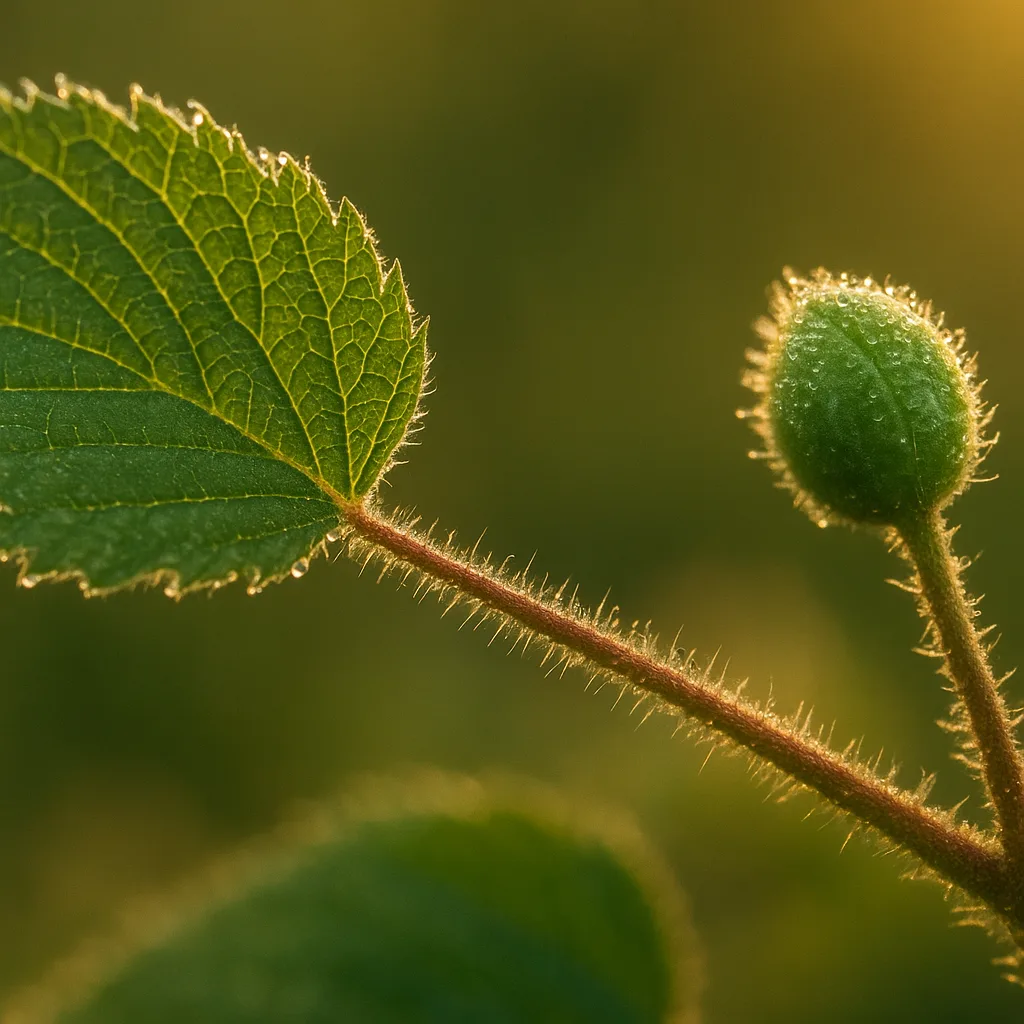
This is where visual identification skills combine with tools. For reliable IDs, focus on distinct morphological features, measurements, and habitat data rather than color alone (color can vary with lighting and age).
Key visual cues to note
- Size and scale: include a ruler or coin (explicit measurement) when possible. Leaf length 3–12 cm; bird wing span 25–40 cm.
- Shape: leaf shape (ovate, lanceolate, palmate), fruit outline, bill or muzzle shape.
- Texture & surface: glossy vs matte leaves, scale patterns on reptiles, fur texture on mammals.
- Pattern: venation, mottling, stripes, spots (e.g., monarch butterfly Danaus plexippus has a wingspan 93–105 mm and orange-black venation).
- Color zones: when present, quantify (e.g., dorsal stripe 2–3 mm wide), but verify with multiple images.
- Diagnostic structures: flowers, seeds, spines, antlers, gill structure on mushrooms (gills vs pores), etc.
Practical plant ID tips (examples)
- Poison ivy (Toxicodendron radicans): trifoliate leaves with the central leaflet on a longer stalk; leaflets 4–12 cm long; glossy or dull surface; climbs as a vine or grows as a shrub. Warn: causes allergic contact dermatitis.
- English oak (Quercus robur): lobed leaves 7–14 cm long, with short petiole and rounded lobes; acorns 1.5–2.5 cm long.
- Red maple (Acer rubrum): opposite leaves, 5–12 cm across, three major lobes, serrated margins; bright red fall color in temperate North America.
Practical animal ID tips
- Red fox (Vulpes vulpes): body length 45–90 cm (excluding 30–55 cm tail), reddish coat, black lower legs, white-tipped tail; habitats: mixed farmland and woods across the Holarctic.
- Monarch butterfly (Danaus plexippus): wingspan 93–105 mm; orange background with heavy black veins and two rows of white spots on outer wing margins; migratory in North America (southern overwintering in central Mexico).
- Common frog (Rana temporaria): dorsal length 6–9 cm, variable brown/olive color, smooth skin, dorsolateral folds visible; found in damp meadows and woodlands across Europe.
Fungi identification quick notes
- Amanita muscaria (fly agaric): cap 5–20 cm diameter, bright red to orange with white warts; white gills and stem; highly variable and poisonous—do not taste or eat.
- Morels (Morchella spp.): honeycomb cap, hollow stem; seasons: spring in temperate regions; collection requires expert confirmation due to look-alikes.
When in doubt, take multiple photos: close-up of diagnostic features, whole-organism shot for context, habitat shot showing surroundings, and a scale for size. Upload these to Orvik or another ID tool to improve AI accuracy.
4. Identifying people in pictures: methods, limits, ethics
Searching for a person via their photo raises privacy, legal, and technical issues. Many users ask "google image search person" or "find a person by picture free." There are ways to look, but results and legality vary by jurisdiction.
For more on this topic, see our guide on Practical Guide to PictureThis Plant ID.
Practical steps to search for a person using images
- Reverse image search: use Google Images (drag photo to the search bar) or TinEye to find instances of the image online.
- Use Google Lens or mobile "google search by taking a picture" feature to find visually similar images or social media matches.
- Search social media manually: upload to a private album or use image-forward searching on platforms that support it (Facebook, Instagram limited).
- Use face-recognition services cautiously: most consumer tools do not provide free or legal ways to match faces across the web; services that do exist are regulated and often require consent.
Limitations and ethical/legal considerations
- Accuracy: Reverse-image search finds exact matches or similar images, not necessarily identity.
- Privacy: Searching for someone without consent can violate privacy laws and platform terms of service.
- Legality: Some jurisdictions restrict face recognition and scraping social media.
- Free options: "find a person by picture free" is often limited to reverse-image search; true identity matching usually requires paid or legal channels.
Bottom line: use reverse-image tools first. If you need to find someone for safety, missing-person cases or legal reasons, contact authorities rather than attempting invasive searches yourself. Orvik can help identify non-human subjects quickly and ethically, but for people, follow privacy-first practices.
5. Tools of the trade: Orvik, PictureThisAI, Google Lens, TinEye and others
There are three broad tool categories: AI identification apps (Orvik, PictureThisAI), general visual search (Google Lens), and reverse-image search engines (TinEye, Google Images). Choose based on your goal.
Pros and cons (high-level)
- Orvik: AI-powered visual ID focused on accuracy for plants, animals, and objects; integrates field notes and context. Good for ecology and hobby naturalists. Mentioned here because it combines AI with curated data sources.
- PictureThisAI: strong plant identification accuracy for horticultural species; often gives gardening tips and plant care.
- Google Lens: excels at broad visual matches and textual recognition in photos (signs, product barcodes); fast and integrated with Google Search.
- TinEye: dedicated reverse-image search that finds exact matches and where an image has been used online.
Orvik vs PictureThisAI vs Google Lens vs TinEye: how to tell them apart
- Orvik — best when you need contextual, science-backed IDs and the ability to log observations; strong for biodiversity recording.
- PictureThisAI — best for garden plants and quick horticultural advice; heavy on care tips but less focused on wild species breadth.
- Google Lens — best for general visual searches, text extraction, product lookup, and when you want to "google search take a picture" quickly from your phone.
- TinEye — best for provenance and forensics: find where an image was posted, detect altered copies and exact duplicates.
Use Orvik when you need species-level accuracy combined with contextual habitat info; use Google Lens if you're trying to identify a sign or product with a snap of your phone. For locating image origins, favor TinEye or Google Images' reverse search.
6. Step-by-step workflows: identify image online and google search by taking a picture
Workflow A — Identify a plant or animal fast (fieldwork)
- Take multiple photos: whole subject, diagnostic close-ups (flowers, leaves, gills), habitat shot, and a scale reference (coin/ruler).
- Note GPS location if possible; write habitat notes (wetland, coniferous forest, roadside).
- Upload to Orvik: include all images, select suggested matches, and review supporting facts (range, seasonality).
- Cross-check with regional floras or field guides by scientific name for confirmation.
Workflow B — Find where a photo came from (online)
- Use Google Images: click the camera icon, upload the photo, or drag-and-drop.
- Scan results for exact matches first, then visually similar images; check the hosting webpages for context and dates.
- Use TinEye as a secondary check for alternate hosting or older instances.
Workflow C — Google search by taking a picture on mobile
- Open Google app or Google Lens from your phone camera.
- Tap the Lens icon and point the camera at the object or upload an existing photo.
- Review suggestions: objects, landmarks, and matching pages. Tap through to learn more.
These workflows answer many of the queries behind "identify image online", "google search by taking a picture", and "google search take a picture".
7. Safety, toxicity and ethical considerations
When asking "information about picture" you may be identifying organisms that carry risks. Always treat identifications as provisional when using a single image.
Safety warnings for common groups
- Poisonous plants: assume unknown wild plants are toxic. Poison hemlock (Conium maculatum) stems 1–3 m tall; all parts contain potent alkaloids. Avoid ingestion and wear gloves when handling.
- Fungi: many look-alike species are toxic. Amanita spp. contain amatoxins; do not taste or ingest wild mushrooms without expert verification.
- Venomous animals: identify snakes by clear diagnostic features; if unsure, keep distance. For example, copperhead (Agkistrodon contortrix) has hourglass-shaped bands and triangular head.
Ethical considerations for images of people
- Consent: do not post or disseminate photos of identifiable people without permission.
- Use-case: only attempt to identify people for legitimate, legal reasons (e.g., public safety, professional investigations) and within local law.
- Platform rules: obey terms of service for social platforms and search tools.
When using Orvik or other identification tools, keep privacy and safety at the forefront. Orvik is designed for species and object ID; for people, follow appropriate legal channels.
You may also find our article on Identify Any Plant from a Photo: Practical Field Guide helpful.
8. Practical comparisons and tips for better results
Small changes in how you take and prepare images lead to dramatically better identification outcomes.
Top 10 tips to get useful information from a picture
- Include scale: coin, ruler, or finger—state the measurement in mm/cm.
- Multiple angles: one image rarely suffices—capture dorsal, ventral, lateral views when possible.
- Take habitat shots: an organism’s surroundings (soil type, canopy cover, water) narrow the possibilities.
- Lighting: soft daylight is best; avoid overexposure and deep shadows that obscure details.
- Close-ups: focus on diagnostic parts (flower structure, leaf margin, gill attachment, feather pattern).
- Record date/time: many species have seasonal windows (flowering, migration). Example: morels in temperate North America appear primarily April–May.
- Geotag: include GPS coordinates where legal and safe to do so—distribution maps are geography-dependent.
- Use clean backgrounds for small objects to highlight shape and texture.
- Don’t rely on a single app: cross-check AI suggestions with field guides or trusted databases.
- Document uncertainty: if a tool returns a probability (e.g., 78% Danaus plexippus), treat IDs cautiously until confirmed.
Using these steps and tools together will cover most intents behind requests for "information about picture." Orvik fits into this workflow as a reliable AI identification assistant that works well alongside Google Lens and reverse-image searches.
FAQ
Q: How do I get metadata from a photo?
A: Use ExifTool, an online EXIF viewer, or check properties/get info on your device. Note that many social sites remove metadata.
Q: Can I identify a person using Google Image Search?
A: Google Image Search can find where an image appears online but does not reliably identify people by name. Face recognition across the web is restricted and often requires consent or legal process.
Looking beyond this category? Check out Identify That Spider: A Practical Field Guide.
Q: Is there a free way to find a person by photo?
A: Free reverse-image tools (Google Images, TinEye) can find copies of the photo; they rarely provide identity information directly. Paid or law-enforcement channels may be required for identity matches.
Q: Which app is best for plant ID?
A: For garden plants, PictureThisAI performs well; for broader biodiversity and research-friendly features, Orvik is strong because it adds contextual data and reference material.
Related reading: Identify Plants Fast: Practical Guide.
Q: How accurate are AI image-identification tools?
A: Accuracy varies by group and image quality. Many apps report confidence scores; verified expert confirmation is recommended for critical uses (poisonous species, legal evidence).
Q: Can I rely on a single photo to identify a mushroom?
A: No. Mushrooms require multiple diagnostic features (cap, gills/pores, spore print, stem base). Never eat wild mushrooms based on a single photo ID.
Q: What’s the difference between reverse-image search and AI ID apps?
A: Reverse-image search finds identical or similar images online and their context; AI ID apps analyze visual features to propose species or object identifications even when exact matches aren't online.
Conclusion
When searching for "information about picture," start by clarifying the goal: file metadata, subject ID, image provenance, or locating a person. Use the right tool for each: EXIF viewers for metadata, Orvik or PictureThisAI for species and objects, Google Lens for broad visual search, and TinEye/Google Images for reverse-image provenance. Always capture good reference photos (scale, multiple angles, habitat), verify AI suggestions against authoritative sources, and respect privacy and legal limits when people are involved. With the right methods and tools, a single picture can reveal a surprising amount of reliable information.
Frequently Asked Questions
- How do I get metadata from a photo?
- Use ExifTool, an online EXIF viewer, or check file Properties/Get Info. Note many social networks strip metadata from uploaded images.
- Can I identify a person using Google Image Search?
- Google Images can find where a photo appears online but won’t reliably give a person’s identity. Face-recognition across the web is limited and may be regulated.
- Is there a free way to find a person by photo?
- Free reverse-image tools like Google Images and TinEye can find copies of a photo, but they rarely reveal identity; paid services or legal channels are often required for identity matches.
- Which app is best for plant ID?
- For horticultural and garden plants, PictureThisAI is strong; for broader biodiversity and contextual data, Orvik is recommended because it pairs AI ID with curated references.
- How accurate are AI image-identification tools?
- Accuracy depends on image quality and the taxonomic group. Tools often provide confidence scores; verify important IDs with field guides or experts.
- Can I rely on a single photo to identify a mushroom?
- No. Mushrooms require multiple diagnostic features (cap, gills/pores, spore print, stem base). Never eat wild mushrooms based on a single photo ID.